You may find the need to customize your statements. Some users have wanted to add things such as "for billing questions call...." or putting in a different "pay to" address. All of these things are possible. What is not possible is to alter the general format of the statements. If you need to do some customization on your statements, you need to setup *.DAT files in your actual account(s), such as \ssiwin\30XXXX. Unless you are absolutely certain you know what you are doing, you should start by practicing in your demo account (\ssiwin\6). If all goes well, then you can do the same in your real account(s).
You should start by copying the appropriate *.DAT files into your account(s). At the DOS prompt, type:
CD\ssiwin\30XXXX (or CD\ssiwin\6 for your demo, if you are not 100% sure yet!)
COPY M6R401.DAT M6R431.DAT for open item private statements
COPY M6R401.DAT M6R432.DAT for open item industrial statements
COPY M6R401.DAT M6R434.DAT for open item Medicare statements
COPY M6R401.DAT M6R441.DAT for family account statements
You are not finished yet! If you stop at this point all of your statements will go out with "SSI® Systems Demo Account" and an incorrect address!
You must be familiar with a text editor, such as the EDIT command. Edit the above M6R4xx files (in your account, not in \ssiwin\1!) and put in the correct information. Remember to maintain the format or your statements will not print correctly! You may add notes such as "for billing questions call" in any space at the top or bottom. The middle is reserved for transaction information and will ignore your text. Demand a few statements and print them. Be sure to print at least 3 statements in one file so that you test the "paging". If you make your template too long or accidentally put in a code that changes your printer, the paging might be incorrect. This could cause a blank page between each of your statements.
To Prevent Aging from Printing on Statements
If you do not want the aging to print on the statement, you can turn off this feature. You may use your favorite word processor or EDIT. If you use EDIT then you would type EDIT M6R4.CTL. You might see the following file:
prtsetup= 027 & 1 -3 e & 1 66 P 027 & a 4 L 027 & a - 2R
prtsetup= 027 E
2-up=no
rptlength=65
(*** End of File ***)
If you want to stop the aging type:
stopsmtaging=yes
Using 2-up Statements
If you want to print 2-up statements, put the following line in your M6R4.CTL file:
2-up=yes
Below is the statement control file screen that will allow you to change most functions without manually editing the control file.
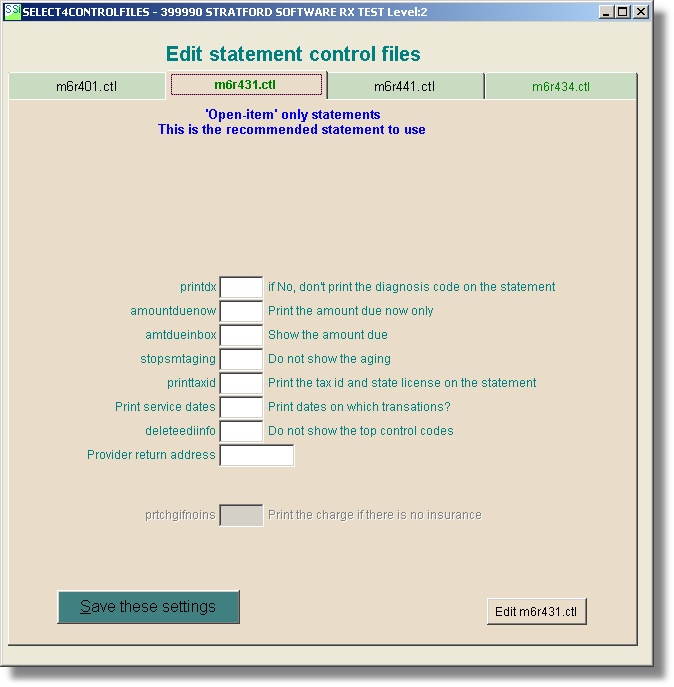
Provider return address. Leave this blank if you are happy with the return address on the statements. If you want to change the address, you may create a provider record with the address the way you want it on the statement. Then right click in this text box and select that provider record.