This is only for technical users. Please do not call Stratford support with questions about this section. Support for this is not included in your regular support subscription.
This section is mainly meant to allow access to the lowest level of the database structures and the data tables. The Stratford support personnel may ask a user to access this section with its associated screens for various reasons.
We may help some users if they can prove they are technically competent at accessing data tables with specialized tools and have knowledge of a database structure that uses primary and foreign keys to link records. This screen could be used by someone who wishes to create a custom report using a report writer like Crystal Reports. For example, the main patient demographic record is contained in a table named m6nmpt.dbf. if you want to see all the tables that are linked to a specific patient record in that table, this screen will give you that information. To repeat, this is not something that is designed for the casual user. In fact, maybe we should say it is only for programmers, although we do have users who are able to use this screen and they are not professional programmers.
An additional feature that is available with this screen is the ability to export the data in any table. The primary export that is supported is XML (although there are other selections). There is no schema at this time, however, we may be willing to expand the feature if there is an interest. Remember that Stratford does not do custom programming so any requests must be 'generic', that is, usable by more than one of our clients and/or more than one specialty.
From the main menu select #7 Other information and services, #1 Other information...., #3 Database/Tables/Field/Contents
Here is the screen:
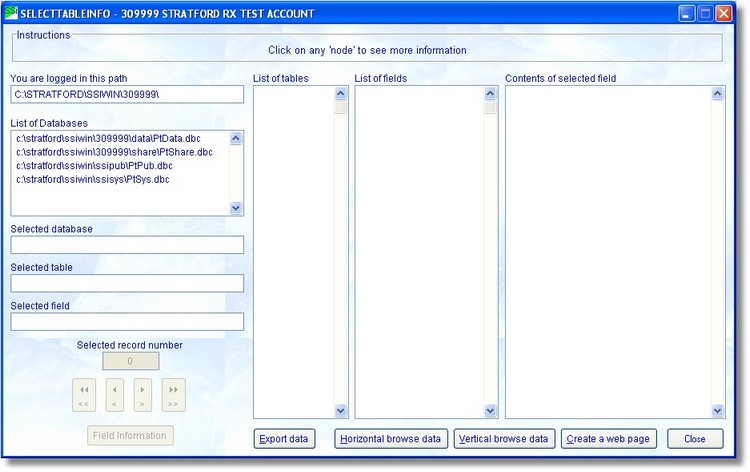
Note that when you enter this section, the Stratford program has already identified all the data tables that are related to your present login. Here we have logged into the account number 309999. Above we can see that we have data in 4 different locations. Each of these 4 locations have a 'database container'
1. c:\stratford\ssiwin\309999\data\ptdata.dbc
2. c:\stratford\ssiwin\309999\share\ptshare.dbc
3. c:\stratford\ssiwin\ssipub\ptpub.dbc
4. c:\stratford\ssiwin\ssisys\ptsys.dbc
The data that are located in the 1st 2 locations above are specific to this one login (one folder - one A/R - one provider/group of providers) and that data are not available to any other account (if you have more than one account on your computer)
The data in the 3rd and 4th location are 'public' and are available to any account on your computer. An example of data that would be here is a procedure code listing. It would be a waste of disk space to have more than one copy of this since there may be significant duplication even for different specialties. Also, if you have a billing service with many different clients (in different accounts/folders) you can enter a new procedure code and it will automatically be available to all accounts on your computer. Of course, when you use the procedure code in a specific account in a specific patient transaction screen, the procedure code is copied to a new table where it is private.
To show how we might use this screen, we will take a look at the procedure code file. Since it is public it is located in the 'ssipub' subdirectory. The ssisys directory is also public but that is reserved for data that is used by the program and will (almost) never be of any value to our users. To access the data in ssipub, click on that 'Database' and you will see the screen below:
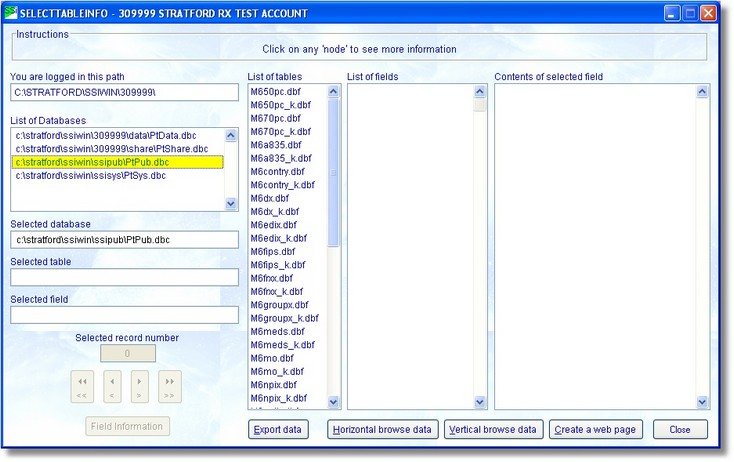
The list of tables are in alphabetical order. Hint: the files ending in '_k' are control files and do not contain user data so ignore them. The procedure codes are in a table named m6pc.dbf. You don't see it above. You will need to click on the vertical scroll bar and pull it down. When you see the table named m6pc.dbf, click on it. You will see this screen:
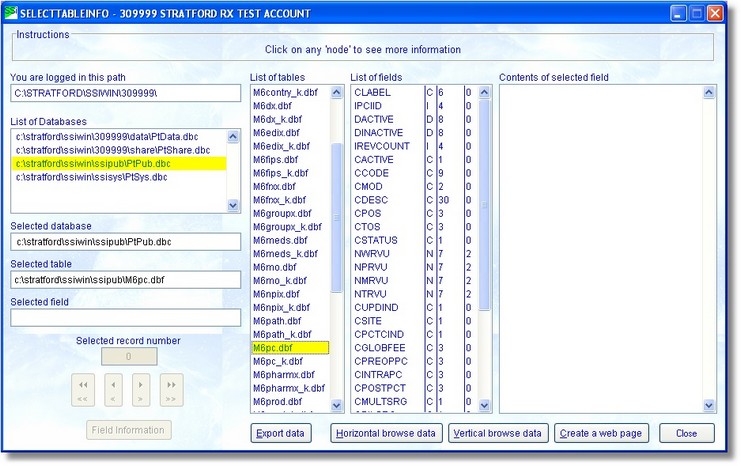
Now you can see a list of the fields that are contained in the m6pc table.If you want to see the data, you must click on a field. The procedure code is located in the field named: cCode and the description is located in the field named: cDesc. If you click on cCode you will see the data that is located in the record number that is displayed in the text box in the lower left. You can move through the data by clicking on the right and left arrows or you can type in a specific record number you are interested in seeing.
Click on the field named cCode and type in the record number 12. You will see the screen below (of course you may have different data since you can enter/change the data using the Stratford program.)
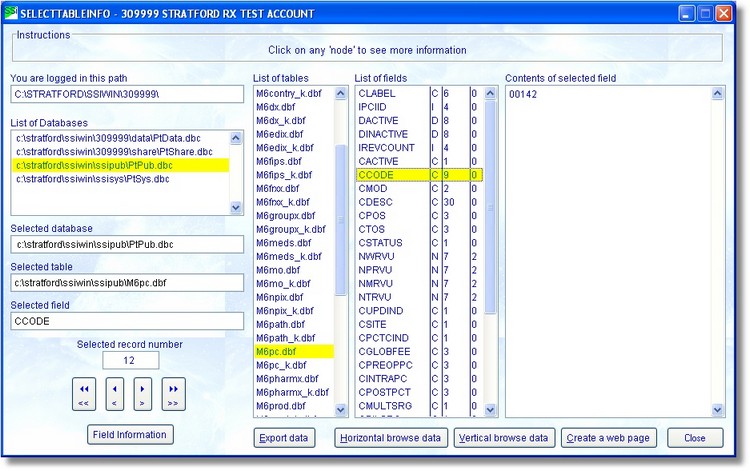
You may ask, why is the text box labeled 'Contents of selected field' so large? It is because some files have a 'memo' type field which can contain a very large amount of data - theoretically up to two billion characters (2,000,000,000). We have not entered that many characters so we can't promise it.
Lets say you want to do a custom report with the data. If you press the button labeled 'Export data', you will see this menu:
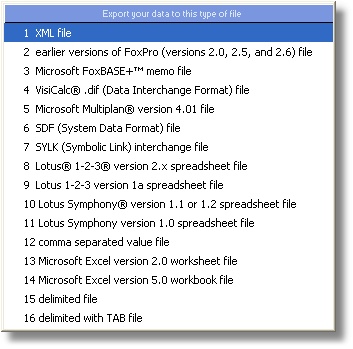
For this example, select #1 XML file. The program will export all the fields and data in this table to an XML formatted file. You will see a confirmation like this:
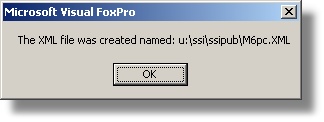
This gives you the file name and the exact location of the file.
XML is possibly the most common, generic format in existence that is used for converting data from one program to another. Free text may be more common but it is just the raw data with no formatting codes and so is of little or no use when converting data from one table structure to another. If you export the table above to XML and then import it into Microsoft Excel, you might get a screen like this:
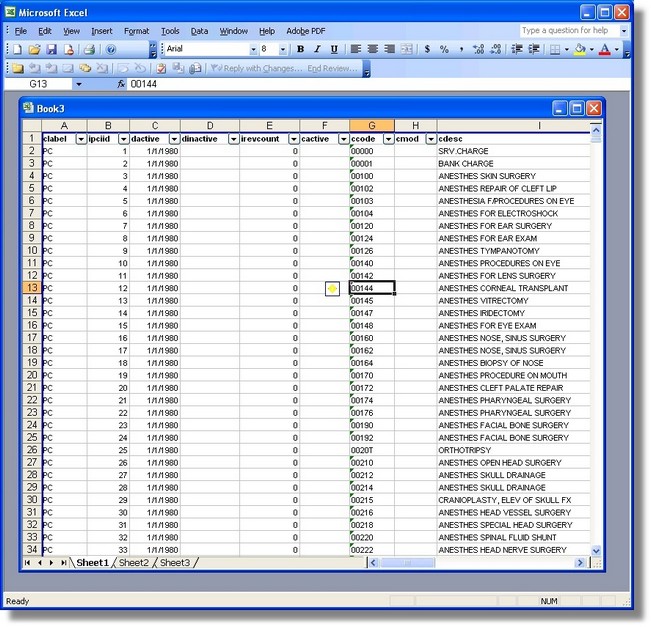
Note the field names are at the top of each column. Most of the newer report writers can import XML.
Once this table is in Excel you can do many different things but that is a different subject not appropriate for this manual.
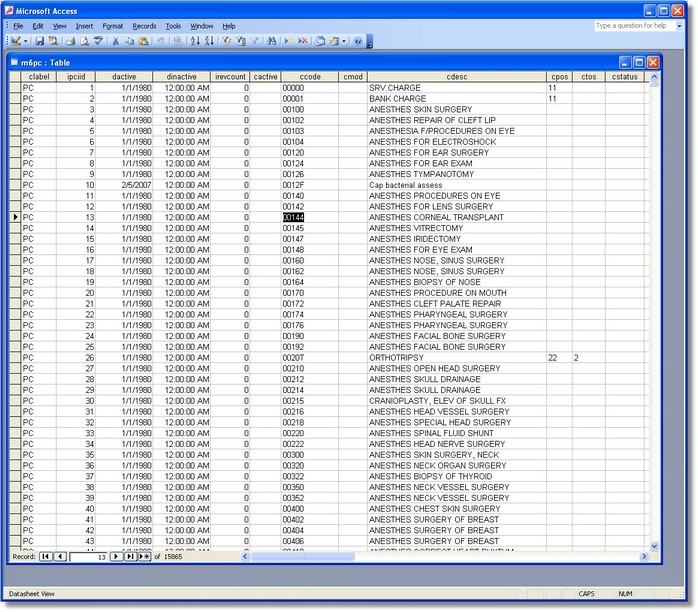
Here is that same table imported into Microsoft Access:
You might ask: If XML is so common, generic and wonderful, why doesn't Stratford just use that format instead of the one that it does use. The primary reason is performance. Our database structure is designed for speed. It is extremely high performance. It is at least as fast as any SQL database that we have tried for data tables up to 2gb. We have clients with tens of thousands of patients and hundreds of thousands of transactions online, available in real time. We cannot use most other database managers/compilers and still have reasonable performance with these very large databases. For example, Microsoft Access 'dies' around 100,000 records in any one file. It is intolerably slow with more than 2 simultaneous users. (at least the versions we have tested). This would not work for the majority of our clients. It is doubtful that XML can ever be as fast because of the way it is stored on the hard drive. But you never know, maybe some day. Here is more information about XML.
One more note: in the past we recommended some report writers like Crystal Reports and some others. Most of these 'generic' report writers are easier to use than we have built into the program - although in some ways they are less powerful and (of course) not specific to the Stratford database structure. All report writers (that we know about) will import XML. The recent versions of the Microsoft compiler that we use has a database structure that may not be compatible with these 'generic' report writers. This is why we have the selection in the list above: "earlier versions of Foxpro" because it is compatible with every report writer that we have tested.