ReservedReport Generator Programs
This section is about the windows-compiled version of the Stratford report writer. This report writer will not replace some of the commercial 'user friendly' report writers like Crystal Reports.
We are well aware that this report writer is not for the average user. However, we have written some common reports that many people might like and so you can have the advantage of what is probably the most powerful report writer available for the Stratford program without the pain.
If you are a programmer or someone who is very 'technically oriented' you may be able to take our samples and modify them. If you subscribe to our support and you are good to work with, we may be willing to help you - that is not a promise. Custom programming is definitely not included in our support. Also, Stratford advertises that it does not offer custom programming.
We include some samples in the folder: \Stratford\ssiwin\2\reports. You must not make any changes to those files in that folder. The reason (explained better in other sections of this manual) is because we destroy/replace everything in the 0,1,2 folders with each update. If you place anything that you want to keep there, it will disappear the next time you get an update. If you want to make changes, you must copy the appropriate files to your private folder or your licensed A/R folder. An example of a licensed A/R folder is 309999.
Your private folder depends on your computer name. Let's say you named your computer 'xp02'. After you first log into the Stratford program, you will magically have a folder named: C:\Stratford\ssiwin\4\Computer\xp02
This report writer is not that easy to describe how to use. You will access the report(s) by selecting from the
main directory: #6, #9
We are in the process of setting up some 'standard' reports at this time. If you are interested in a report that you thing would be of interest to most Stratford clients, please let us know. Maybe we will put the report you suggest in that report menu as a sample.
The files that make up a custom report are named like this:
1. m6r1691.frx <<< the main report template
2. m6r1691.frt <<< support file for the template - you would never access this file for any reason
3. m6r1691.prg <<< has programming code to select fields from the data tables
4. m6r1691.ini <<< has the menu selection display
After going to the menu will see a screen like this.
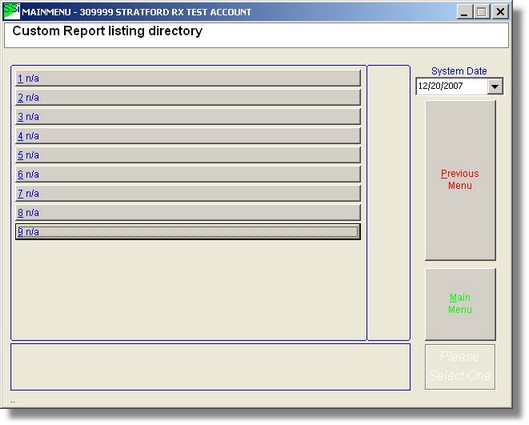
You can create a file named: m6r1691.ini and enter the following:
* Note: designed for John Doe
* put this ini file in the client A/R: example: C:\Stratford\ssiwin\309999
* There should be other files,
* m6r*.ini << this file. It must be in your a/r
* m6r*.prg << the code for SQL and possibly other code. Be careful making changes here. You could lose data
* m6r*.frx << the report template. You must use the internal program to make modifications
* m6r*.frt << ignore this. Do not ever make any changes here
* m6r*.fxp << ignore this. Do not ever make any changes here
* m6r*.bak << ignore this. Do not ever make any changes here - this may not be present.
[Settings]
menuselection=Custom Report for John Doe
We recommend that you use an editor like Windows Notepad or the one built into the Stratford program: from the main directory select #7, #11. When you first build a report, you should place the files in your A/R (ex: 309999). This file must not be created with Windows: Wordpad, MS Word or any other editor that enters invisible formatting codes.
After creating the m6r1691.ini file you should see this:
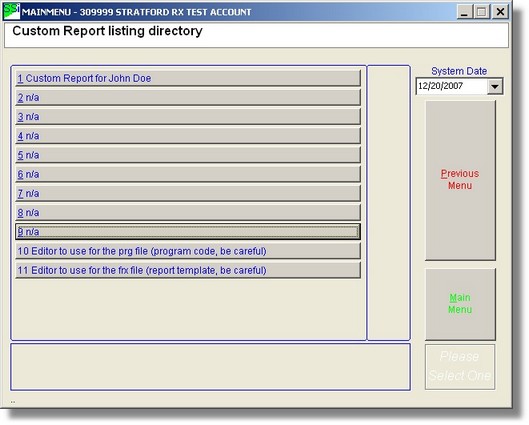
Notice the 2 new menu selections: 10 and 11. These can be used to modify the report files. Number 10 is an ordinary text editor like Notepad (nothing fancy). You can use this for programming. Of course, there are much better code editors, however, this one will not put any control codes in your files and so will not cause any trouble with your programs.
Now we will create a program in a file named: m6r1691.prg. The Stratford program has a built-in compiler and when you run the report, it will compile your program code and create a new file named m6r169.fxp. We put this as our program:
* Custom report for John Doe in account 309999
vp_tmpfile = goApp.login_TempPathComputer + "m6r1691.dbf"
IF USED("VFRX")
USE IN VFRX
ENDIF
Select ;
m6nmpt.cCode AS pt_cCode, ;
m6nmpt.cFname, ;
m6nmpt.cLname, ;
m6nmpt.cAdd1, ;
m6nmpt.cAdd2, ;
m6nmpt.cCity, ;
m6nmpt.cState, ;
m6nmpt.cZip, ;
DTOC(m6nmpt.dDob) as pt_DOB, ;
m6nmpt.cSSN, ;
m6ptp1.nBal ;
FROM ;
ptshare!m6nmpt, ;
ptdata!m6ptp1 ;
WHERE ;
m6ptp1.inmptiid = m6nmpt.inmptiid ;
ORDER BY ;
clname,cFname ;
INTO Cursor VFRX
Set step on
x=1
y=2
z=3
vp_tmpfile = goApp.login_TempPathComputer + "VFRX.dbf"
If Adir(aDummy,vp_tmpfile) = 1
DELETE FILE (vp_tmpfile)
Endif
SELECT VFRX
DELETE FILE ("test.*")
INDEX on cLname+cFname TO TEST
COPY TO (vp_tmpfile)
* remove the * to make this work. It will show your raw data prior to running the report
*ACTIVATE SCREEN
*BROWSE
Just a reminder. Do not use an editor that puts control codes in your file. If the words above look cryptic, don't worry. It is just another language like English or Spanish only this one can be read by the Stratford program. It will read the patient names and account balances from your data tables.
Now select #11 on the menu to create/modify a report template. You will see something like this:
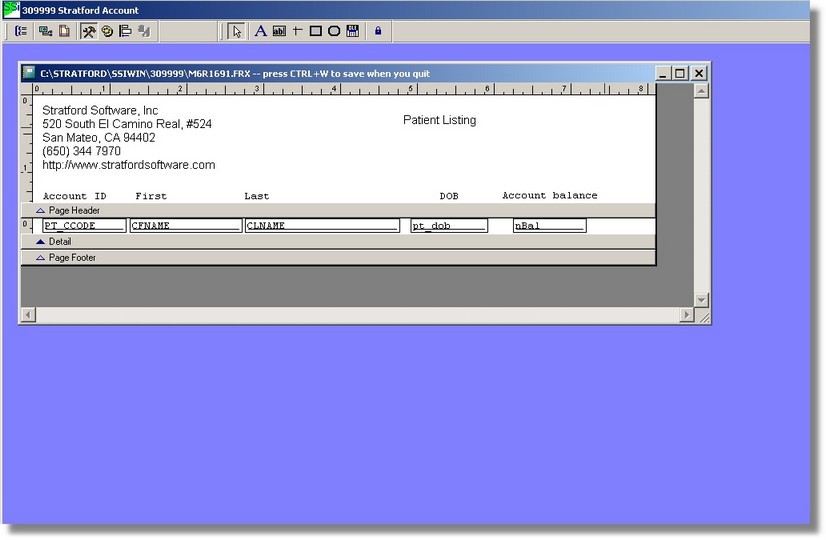
This should display the patient account number, first name, last name, date of birth and the account balance. If you right-click on the 'nBal' text box and select properties you will see something like this:
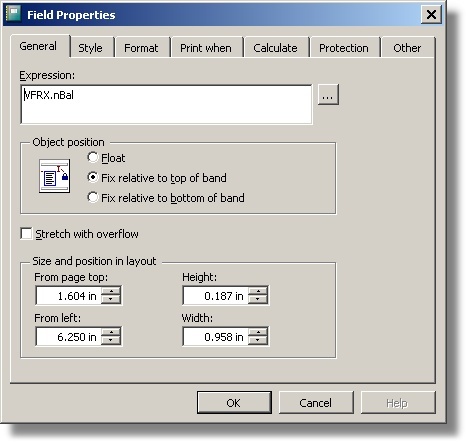
Close the windows built into the Stratford program with CTRL+W. That will save any changes. If you do not want to save any changes, just click the 'X' box in the upper right corner of the editor window.
Now select #1 on the menu to run your report. You will first see the preview creation screen:
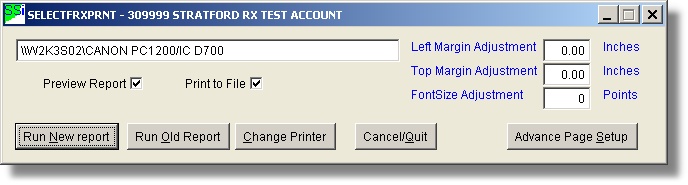
This screen allows you to change the printer if you want. You do not need to print now. This 'preview' of your report will have nice formatting designed for a laser printer. If you do not print here, there will be an ANSI plain text version on the main menu that you can print like you print any other files.
Press the 'Run New report' button. This will show the preview, but will not print it. You can print if you want.
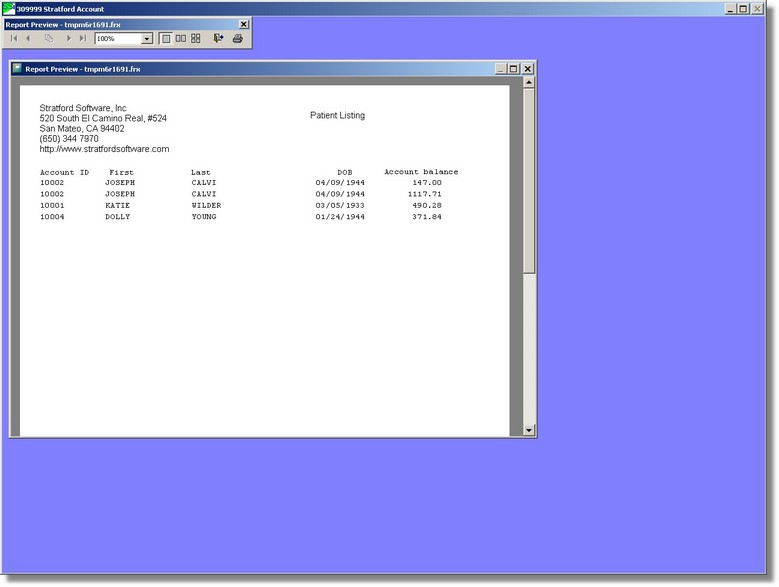
Note: if you have a long, multi-page report you must use the 'PageDown' and 'PageUp' keys to go from page to page on most computers. The arrow keys will move inside one page. You cannot make changes to this view. Think of it as being a 'PDF' format. If you want to create a PDF version with this nice, laser formatting, you should consider getting a printer driver that creates PDF files.
You can simply close this window without printing if you want.
We know that this will not be very helpful for most people. It is here because Stratford does have a significant number of clients who can program or have access to someone who can do some programming.
Note: the files we used to create this report are available to you. Look in the \ssiwin\2\report folder.
We want your feedback.