The program is designed with colors that are suitable for most hardware configurations that our current client base has. We occasionally will change these colors as necessary.
If you would like to customize the program to your needs, there is a utility to help. The utility will only change the colors for the specific workstation where you are working. In other words, if you have a network of computer workstations, if you are using workstation A, the color choices you make will not affect workstation B.
Not all objects can be changed. If you find a specific object that cannot be changed and you think you should be able to change it, you should send an email to support@stratfordsoftware. It is always a good idea for you to send a picture of the screen that has the object in question. This will save a lot of time for you to get an answer/solution.
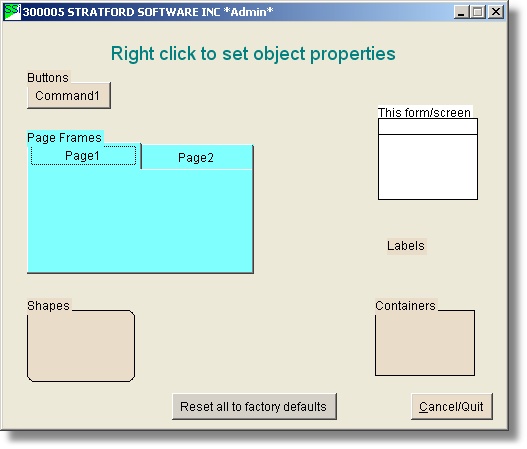
Here is an example of the colors that you might see:
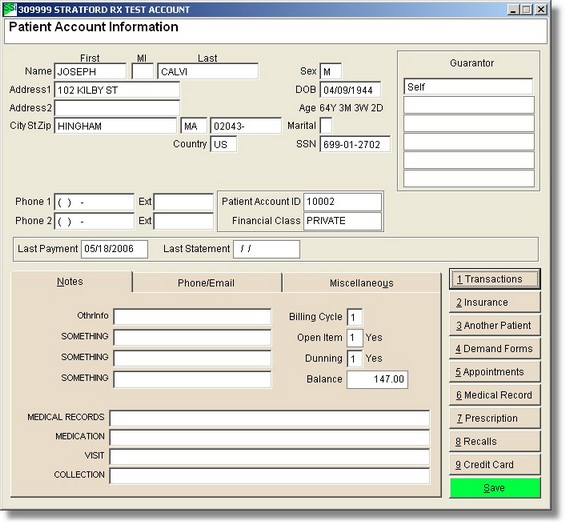
You would like to see the pageframe in a light blue color and the buttons in a light yellow color.
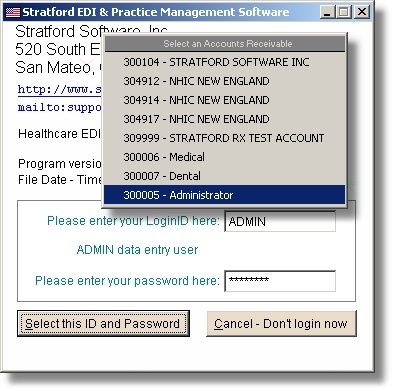
You will need the 'administrative' password for your installation. Use it to log into the control account for your system. It is possible for you to change the privileges so that your usual ID/password will allow you to change the master variables. For this manual subject, we will assume that you have the default privileges.
Return to the log in screen and log in as the adminitrator:
From the main menu, select #8, then #1 to get to the master settings screen.
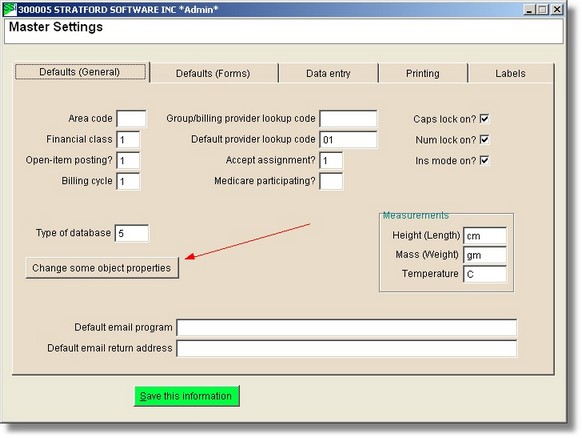
Press the button labeled 'Change some object properties'. You will see this screen:

Right click on the pageframe (see the red arrow above)
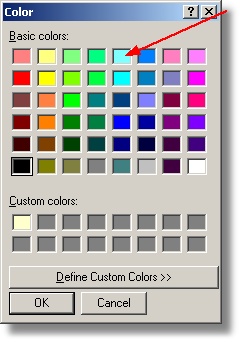
You said you wanted a light blue color so click the square with the arrow and press the 'ok' button. You will then see this screen:
You can make a similar change to the buttons.
Quit that screen and leave the program.
Note that none of your changes will show in the program for any screens/objects that were initialized/viewed prior to your changes. To affect all objects, you need to leave the program and log back in.
Your feedback on this function or any other customization ideas you may have are welcome. The change in this manual section came from suggestions from our clients at one of our annual user meetings.