How to merge 2 lookup codes
This utility can cause you to lose data if you do not understand what it does. Before you use it, you must have a good backup and you must know how to restore that backup. Stratford cannot help you recover any deleted records after you use this utility except by using a backup.
Q: What is the purpose of this utility?
A: Here is an example: You accidentally entered a duplicate insurance record. You have one now with the lookup code AARP and it is used in many patient accounts. Then you accidentally enter a duplicate: AARP-1 and it is used in patient accounts so it cannot be deleted.
Solution:
From the main menu select #8, #3 (the 'reorganization' menu).
At this time we have the merge utility under #13:
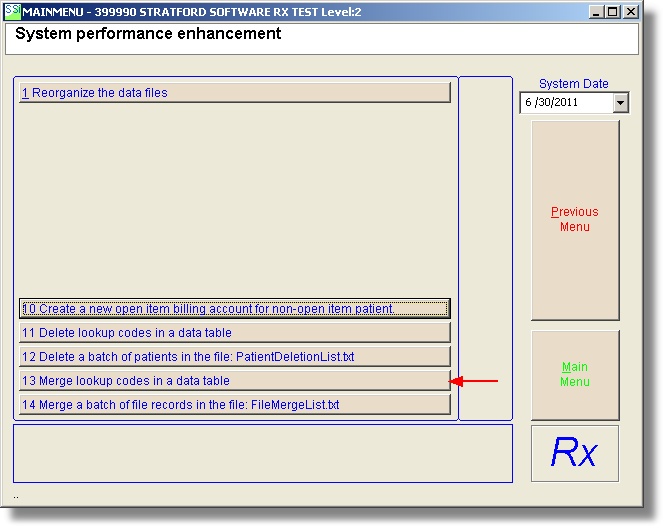
When you select #13 you will see this message:
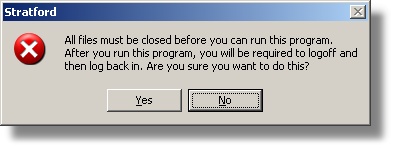
This is a similar message that you see when you run the reorganization program. The reason is that this utility has the ability to open all databases and all data tables. It will close them when it finishes, but you must start from the beginning before you can continue with data entry. We recommend that no one else should be working in the program (if you have a network with several workstations) because of possible conflicts that could cause the utility to fail.
If you select Yes, you will see the utility screen. The first text box needs the name of the data table that has the lookup codes that you want to merge.
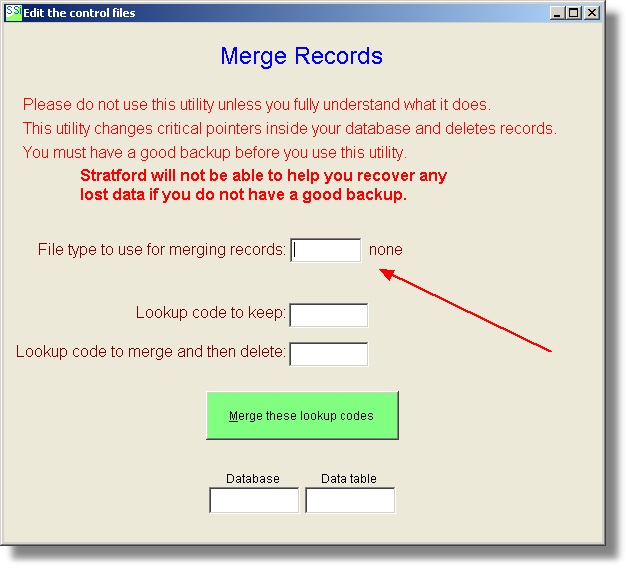
If you right click on this text box you will get a short cut menu with the possible files with lookup codes that can be merged.
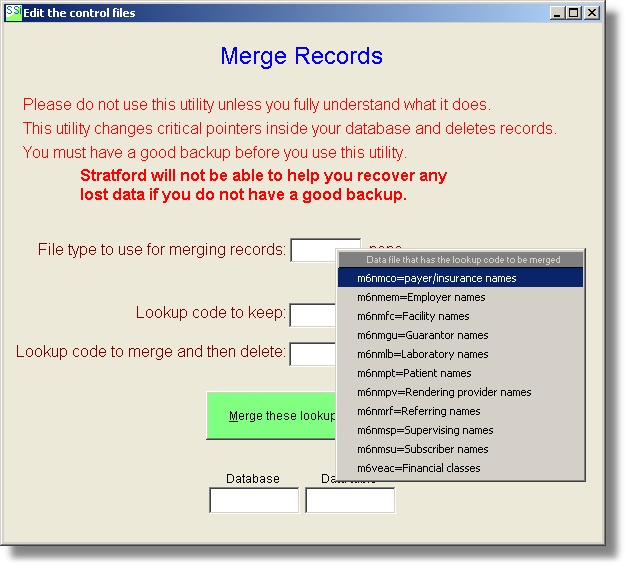
For this example, we will merge two lookup codes in the insurance data table. Choose the first menu selection named:
m6nmco=payer/insurance names
The second text box is for the lookup code that you want to keep.
The third text box is for the lookup code that you want to merge and then delete.
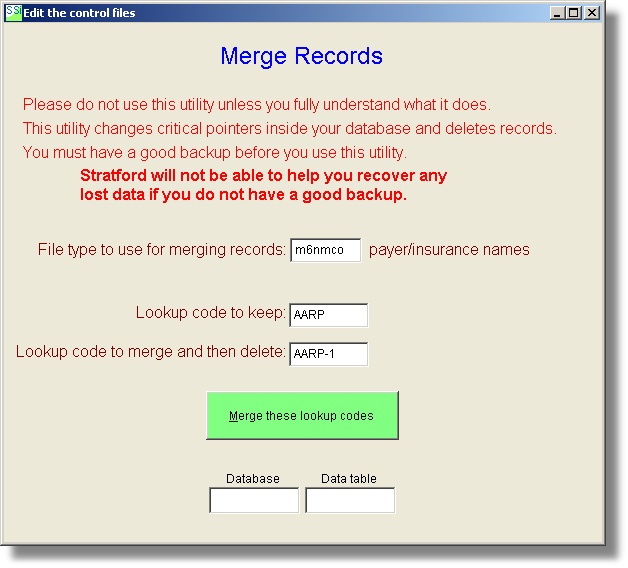
If the merge process is successful you will get a confirmation message. The screen above will remain in view so you can merge other lookup codes.
You could merge 5 more codes in the insurance data table and then merge some lookup codes in the laboratory or referring provider or other data tables.
If you have a lot of lookup codes to merge, you can do this with the Batch Merge Utility.
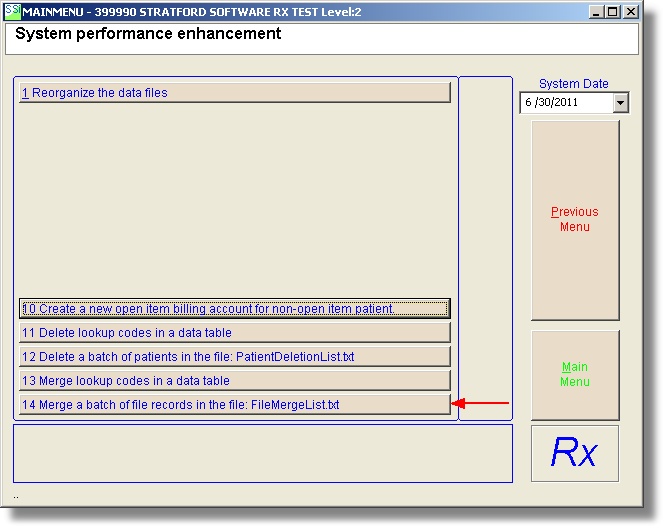
To use this utility, you must first setup a text file named FileMergeList.txt in your a/r folder (ex: \Stratford\ssiwin\399990 ) with this type of layout:
FileName LookupCodeToKeep MergeLookupCodeToBeDeleted AnyOtherDescriptionTextThatYouWant
Here is an example:
m6veac 04C 04C@8 This text is for your eyes only. the software will ignore it
m6nmco ALBCBS ALBCBS@2 This text is for your eyes only. the software will ignore it
m6nmco 8092-V9S 01XY an insurance company
m6nmpt 04323 04323@7 a lookup code to be merged
Notice there is at least one space (or tab or comma) between the file name and the lookup code that you want to keep and the lookup code to be merged and then deleted.
Remember that when you 'delete' something from your database, it is not really deleted/erased but rather it is 'marked for deletion'. The only way to get it out of your database and recapture the space is to reorganize your files.
We would appreciate your feedback for any of our screens.