There is a schedule screen that will show one day for one provider so that you can better see the day's appointments.
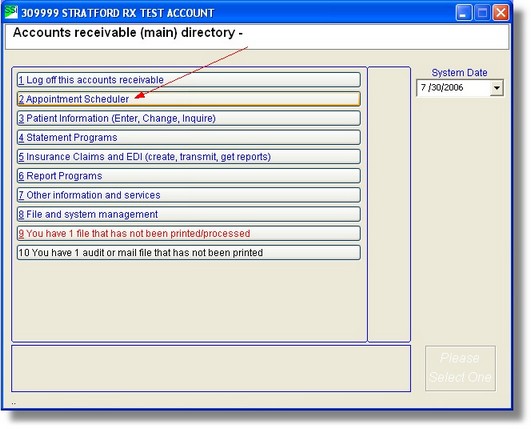
You can access this screen if you right-click on the 2nd main menu item
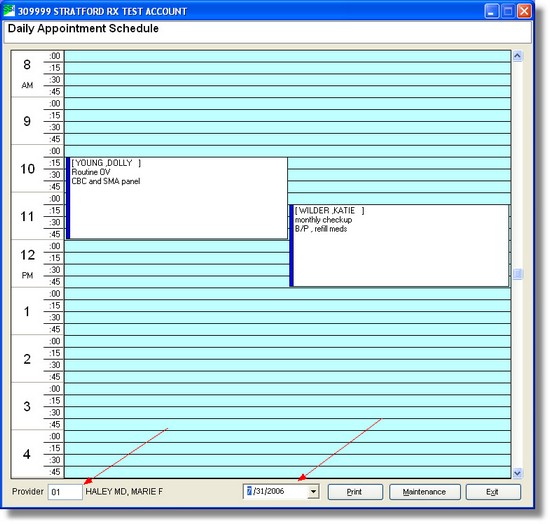
This will show today's appointments for the last provider that you used in this screen. You can change this display for the date and the provider by using the controls at the bottom of the screen.
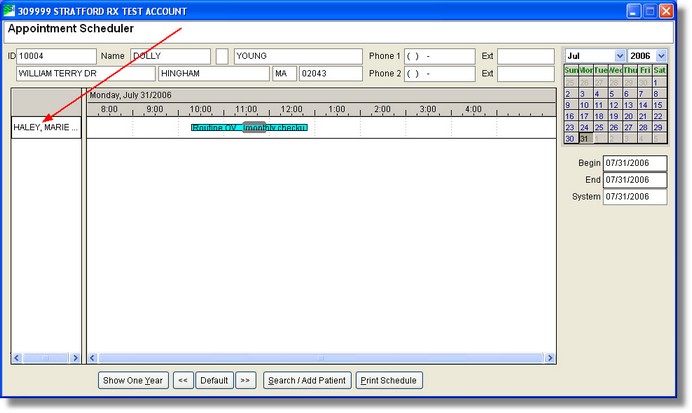
Another way to access this one-day/one-provider screen is from the main schedule screen. Shift-Left-click on the left column of the schedule where the provider entry is located. If you just Left-click you will get a simple 'short-cut' menu with all of the appointments for that provider for the day that is displayed. if you right-click you will see the setup screen for that provider. This may seem complicated, but if you use it a lot, you will do it without thinking.
Here you will see a one day schedule using the provider that you clicked on the main schedule and the day that is showing on the main schedule. As always, you can change the one-day display.
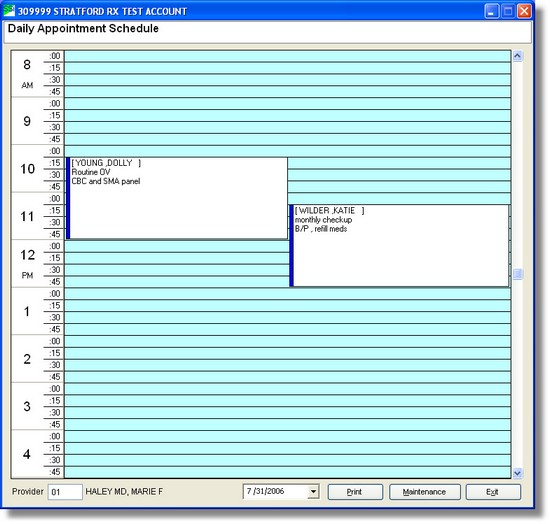
Notice at the bottom of the schedule the button labeled 'Print' that will allow to print this display. There is another button labeled 'Maintenance'. This button allows access to the maintenance screen for this provider's one day display:
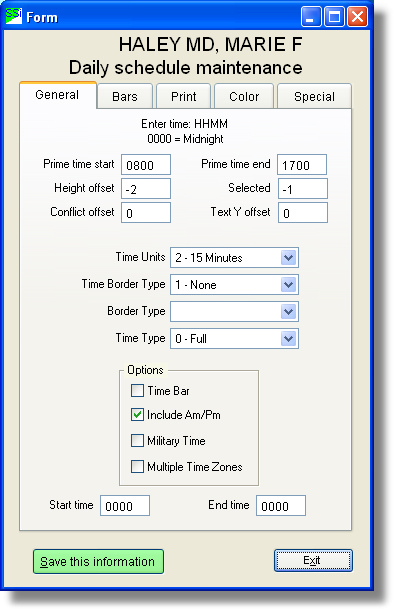
Here you can modify many of the features of the one-day display for this provider. The first tab 'General' has the start/stop times for the provider for today's day of the week (example: Monday). When you set the Prime-time (start & stop times) on the General tab, it will set the times for every day of the week. If you wish to have a different start & stop time for different days of the week, click the 'Special' tab:
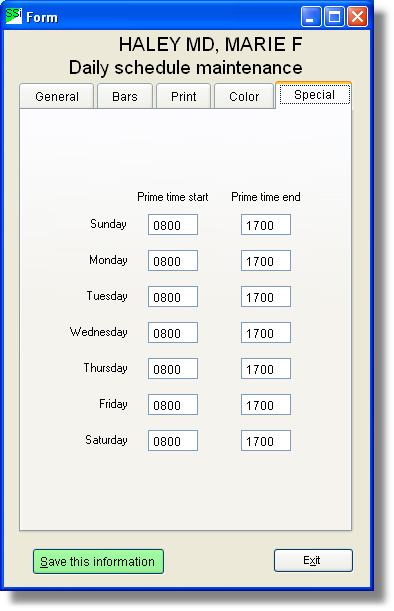
Here you can change the start & stop times for this provider for each day of the week.
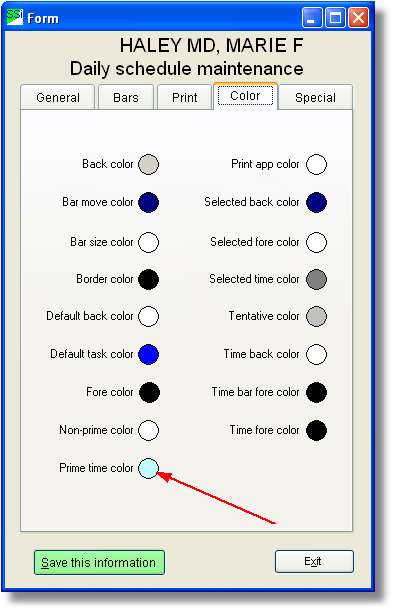
You can change the color of the Prime-time (start & stop times) by clicking the 'Color' tab.